Bring paper from your drawers, photos from your phone and PDFs into one library. Scan multiple pages with automatic edge detection, perspective correction and lighting adjustments.
Paperwork in order.Life a little lighter.
Scan, recognize text and sort your paperwork. Turn receipts, contracts and everyday essentials into a local library you can find your way around.
Made for iPhone & iPad · iOS 18+
Preparing for the App Store
App interface currently in Simplified Chinese.
Bring it in
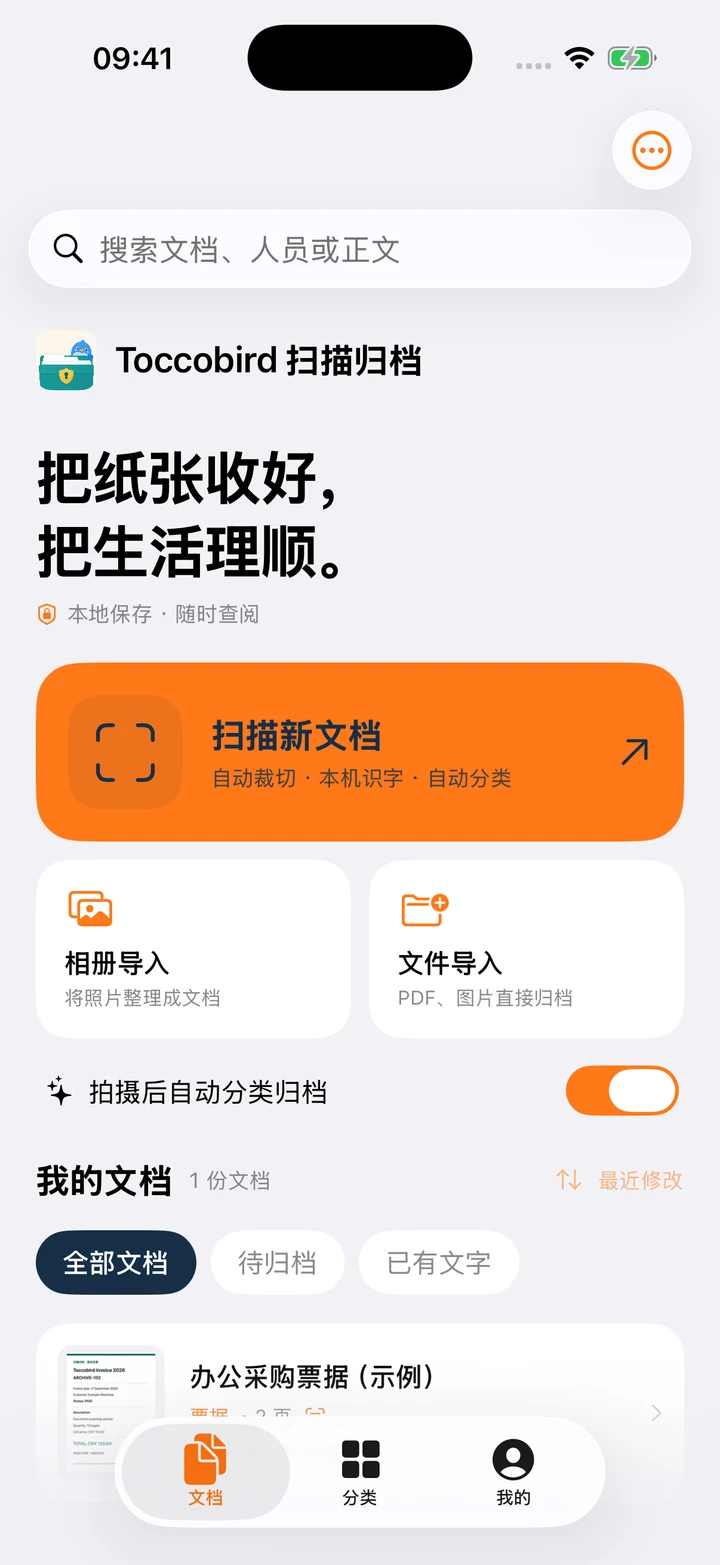
Scan paper or import your photos and PDFs.
Put it in order
Recognize text, suggest a category and keep the originals.
Find it again
Search a few words from the document inside the app.
From a stack of paper to a searchable library
A place forevery document.
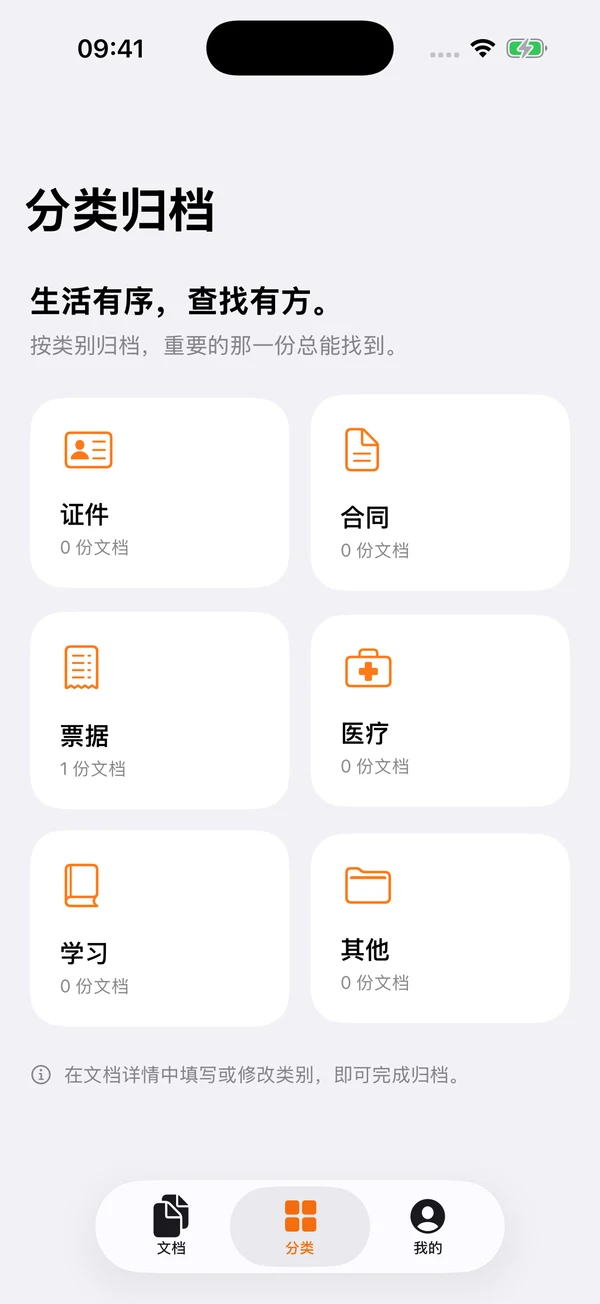
After scanning or importing photos, save the originals first. Recognize Chinese and English text on your device, then try to file it as an ID, contract, receipt, medical record or study material.
Forget the file name. Search recognized text, titles, tags and notes, then check important names, dates and amounts one page at a time.
Export a PDF when you need to share. Back up selected documents or your entire library when you need to keep them, including originals and document details. Restore them as new copies.
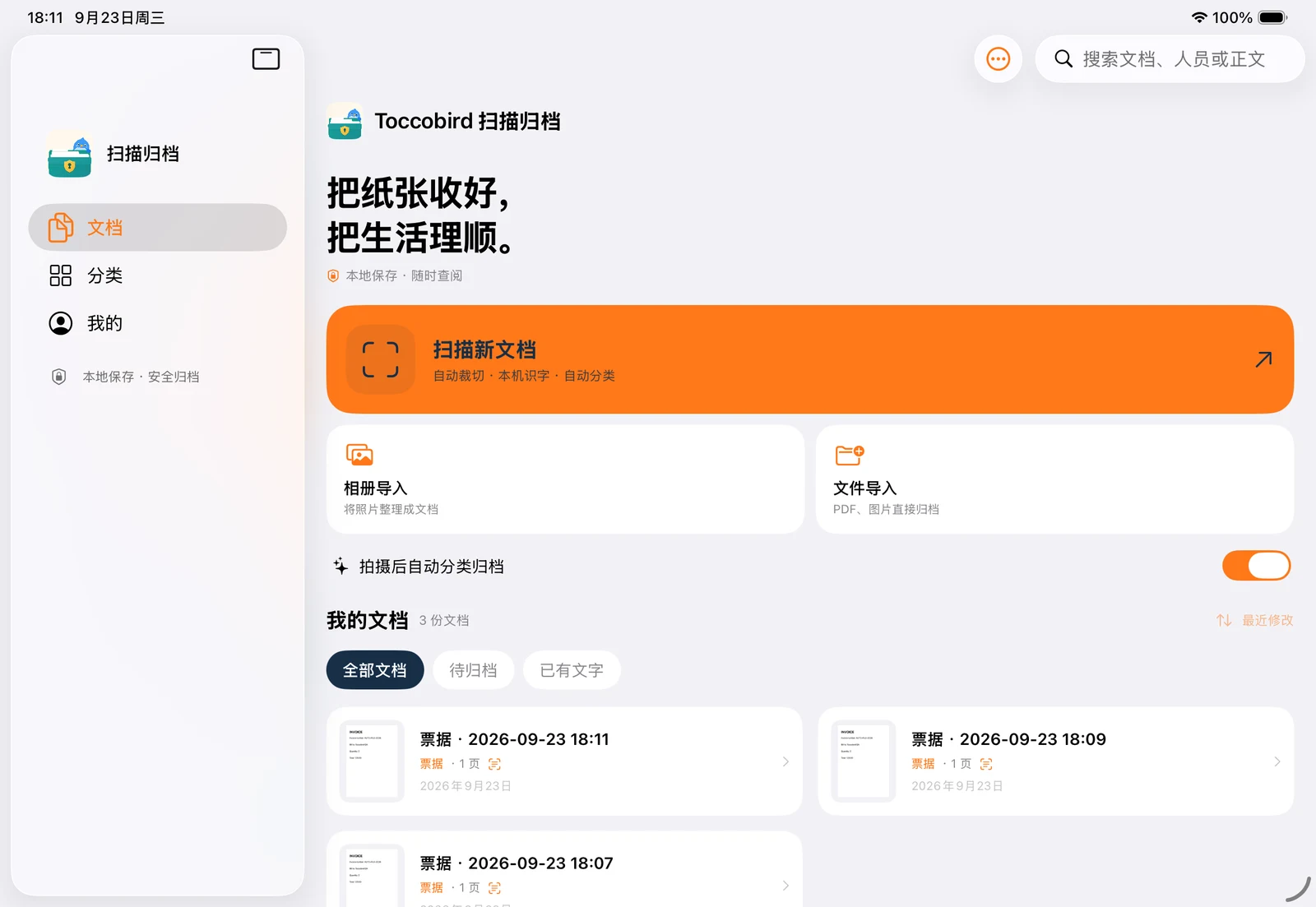
Import PDF, JPEG, PNG and HEIC files. In manual mode, rotate, reorder or remove pages before saving.
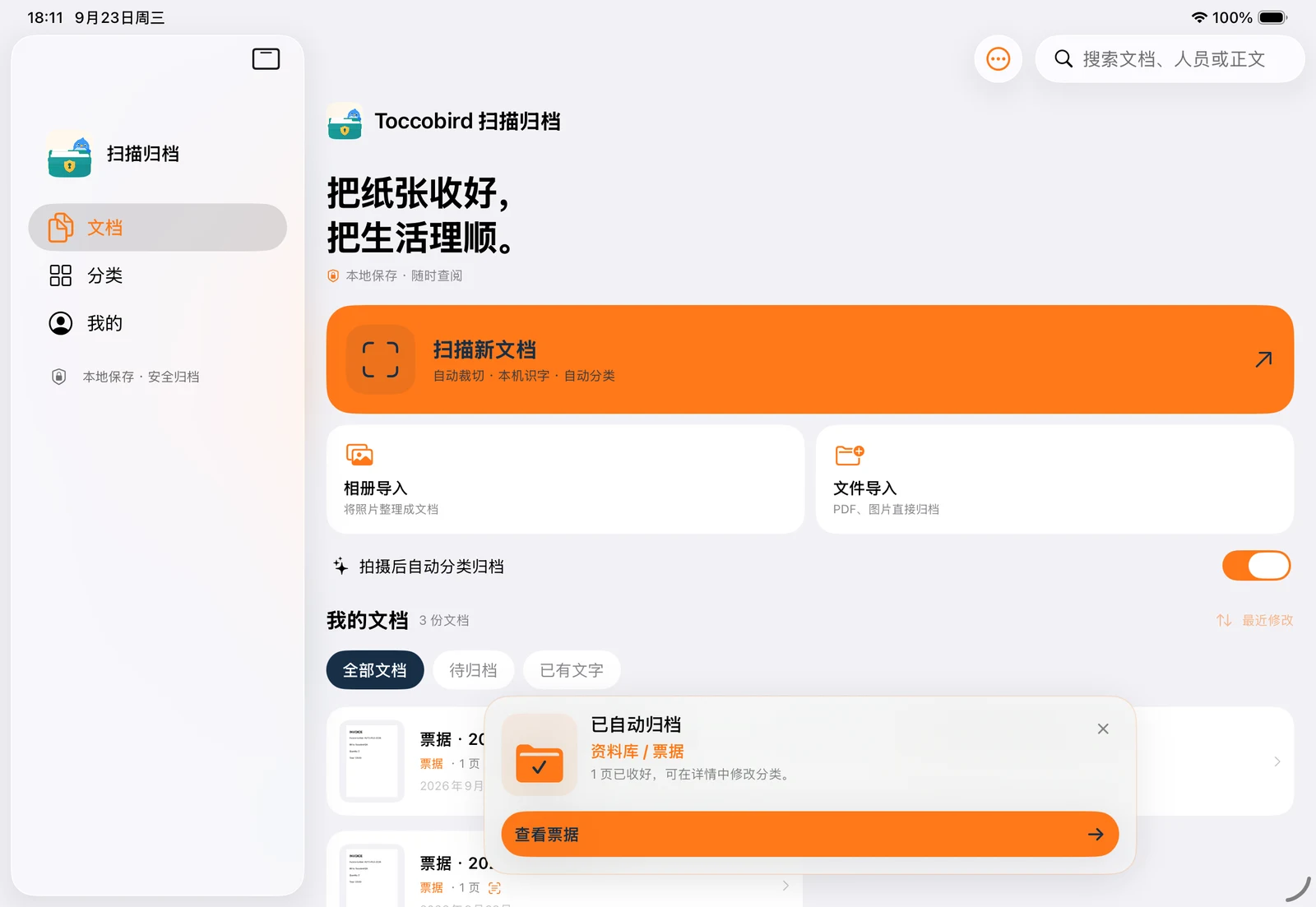
Unclear or mixed documents stay unfiled for you to review. You can also turn off automatic filing and organize them yourself.
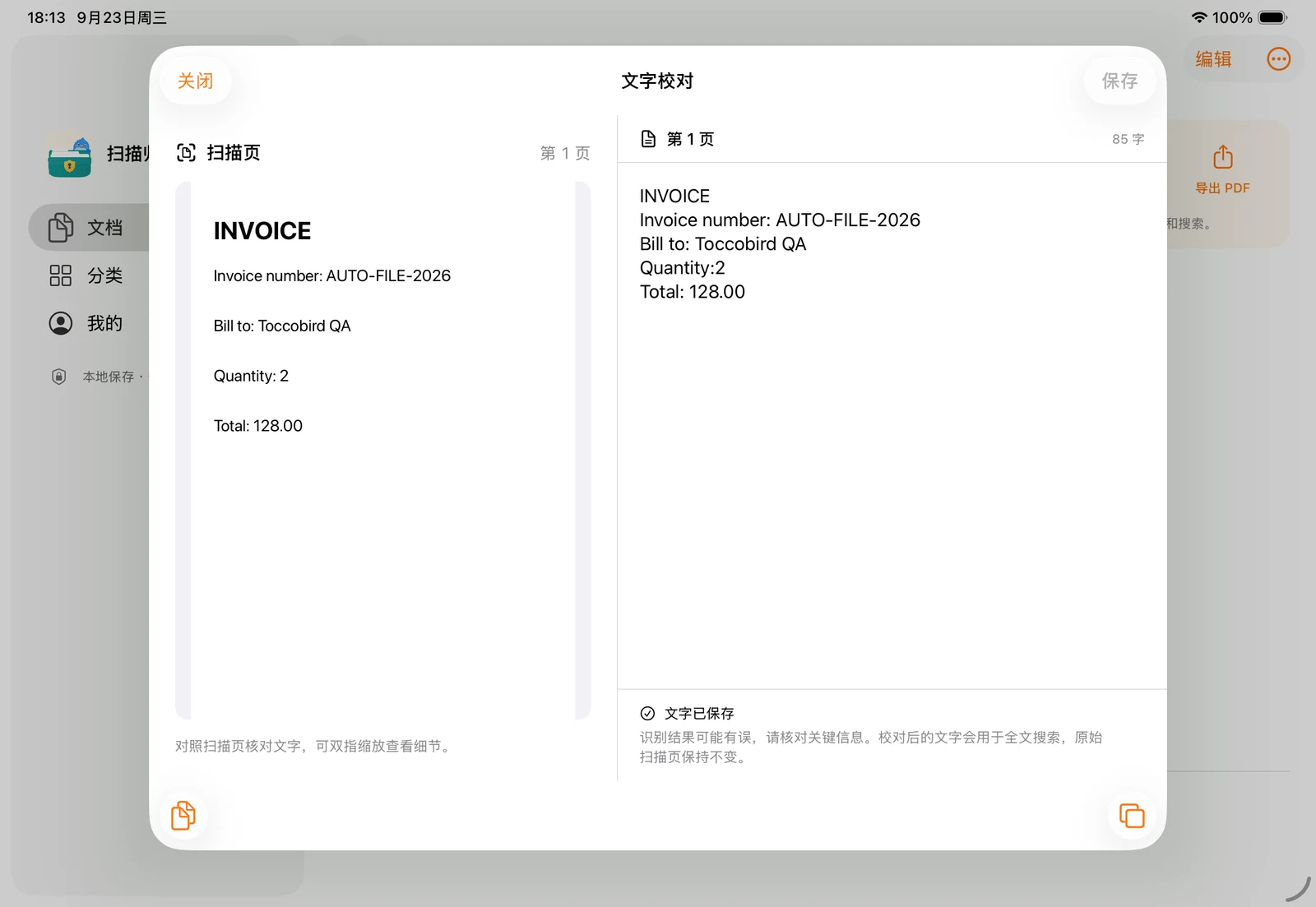
A wide iPad window shows the original and text side by side. Corrections update in-app search while your original scans stay unchanged.
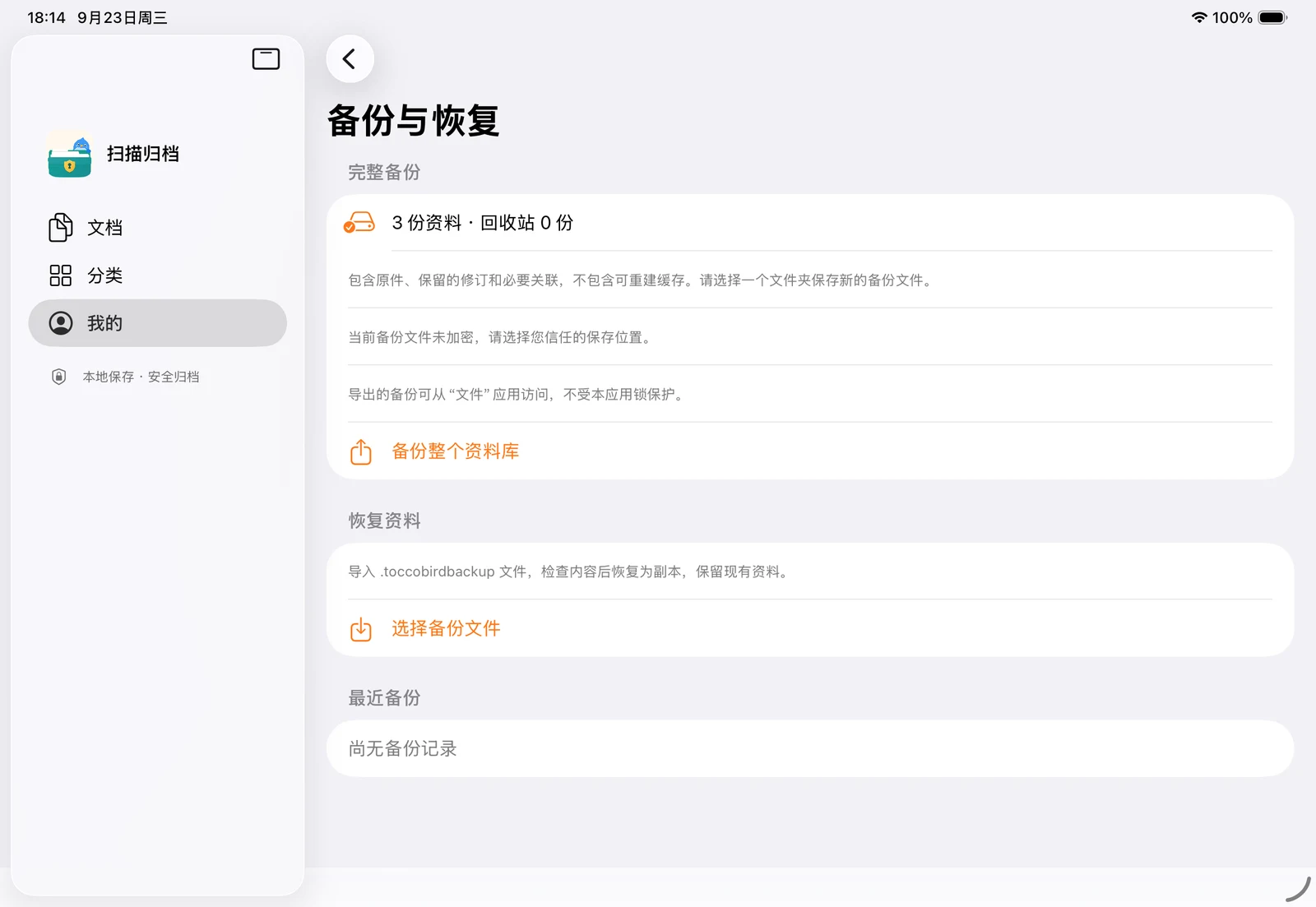
Exported scan PDFs do not include a searchable text layer. Backup files are currently unencrypted; save them somewhere you trust.
Receipts · Contracts · IDs · Health records · Study materials
Your important papers.In your hands.
No app account to create. Scanning, text recognition, filing and search happen on your device, where your library is stored.
Cloud sync is not currently available. Files you choose to share, export or back up, and system device backups, may leave your device. Exported backups are not protected by the app lock.
A familiar way to unlock
Open your library with Face ID, Touch ID or your device passcode. It locks when the app enters the background.
Keep your originals. Take a copy.
Export PDFs or back up selected documents and the full library. Backups are unencrypted; choose a trusted location.
A few things you may be wondering
Can I download the app now?
Toccobird Scan & Archive is preparing for the App Store. This website shows currently implemented features and actual app screens with sample documents. A download link will be added after release.
Which devices and languages are supported?
The app supports iPhone and iPad running iOS / iPadOS 18 or later. Its interface is currently in Simplified Chinese; text recognition supports Chinese and English. This website is available in both languages. Camera scanning requires a device that supports VisionKit document scanning.
Does OCR need an internet connection? Are documents uploaded?
Text recognition, filing and in-app search run on your device. No app account or upload to an OCR server is required, and there is no automatic cloud sync. Copies you save through sharing, a file provider or device backups are handled according to your chosen services and settings.
What can I import, and how many pages can I scan?
Choose multiple images from Photos or import PDF, JPEG, PNG and HEIC files. Each scan or photo-import session supports up to 20 pages, subject to file-size and available-storage limits. Turn off automatic filing to preview, rotate, reorder and remove pages before saving.
How accurate is recognition? Can I search exported PDFs?
Text recognition and filing can make mistakes, so check important details. Unclear or mixed documents stay unfiled for review. Corrected text can be searched and copied within the app. Exported scan PDFs do not include a searchable OCR text layer.
How do I protect, back up or move my documents?
Set up a device passcode before use. Unlock the library with Face ID, Touch ID or your passcode; it locks when the app enters the background. Back up selected documents or the full library, then restore them as new copies on another device. Backups are currently unencrypted and outside the app lock, so choose trusted storage and recipients.
Less searching. More room for life.
Preparing for the App Store
Contact support